Working with SSH certificates
‼️ To begin, make sure you have a user account at CSC that is a member of a project which has access to the Roihu and Allas services. Note that there’s a small delay before one can login to Roihu after creating a new project and adding services.
💬 SSH keys and certificates improve security and ease-of-use. They are required to be able to log in to Roihu from the terminal using an SSH client.
☝🏻 SSH keys and certificates are not necessary if you only use the browser-based web interfaces to log in to Roihu.
‼️ Before starting this tutorial, make sure you have set up your SSH keys.
An SSH certificate is a proof of a successful two-factor authentication completed at MyCSC. You should never share your certificate with anyone. Accompanied with your private SSH key, it can grant anyone an access to your account on Roihu.
Option 1: Using the CSC certificate helper tool
💬 CSC has developed a Python helper tool for signing and downloading an SSH certificates, and adding it to your SSH agent.
💡 This is the recommended way to get your SSH certificate for logging in to Roihu using an SSH client!
Windows
- Download the certificate helper tool here (right-click link and select Save Link As…).
- Check if you have Python installed on your computer:
- Open PowerShell or MobaXterm terminal.
- Type
python3and hitEnter. - If this opens a Python interpreter, you’re good to go!
- If you get an error, you need to install Python. Python downloads are available here.
- This may require admin privileges, so please be in contact with your local IT-support if necessary.
- If Python for some reason cannot be installed on your computer, please proceed with Option 2 instead.
- Optional, but strongly recommended: Make sure you have an SSH authentication agent running. There are two options:
- Pageant & WinSCP will enable automatic adding of SSH keys and certificates to Pageant SSH agent.
- This is recommended for users logging in to Roihu using PuTTY or MobaXterm GUI.
- Pageant comes bundled with both PuTTY and WinSCP installations. Instructions for installing WinSCP are available here.
- Start Pageant following the instructions here.
ssh-agentutility will enable adding automatic adding of SSH keys and certificates to OpenSSH agent.- This is recommended for users logging in to Roihu using PowerShell or MobaXterm terminal.
- Start
ssh-agentin PowerShell following the instructions here (requires admin privileges!). -
Start
ssh-agentin MobaXterm terminal by running:eval $(ssh-agent -s)
‼️ Important note: SSH agent is not mandatory to sign and download SSH certificates for Roihu, but using it makes connecting much easier (e.g. no need to type SSH passphrase every time).
☝🏻 Using SSH agent is also a prerequisite to be able to move files directly between Roihu and other CSC services (like Puhti or LUMI).
- Pageant & WinSCP will enable automatic adding of SSH keys and certificates to Pageant SSH agent.
-
Open PowerShell and run the certificate helper tool for example like this:
# Please change the paths and usernames (localuser, cscuser) as needed python3 C:\Users\localuser\Downloads\csc_cert.py -u cscuser C:\Users\localuser\.ssh\id_ed25519.pub- The helper tool opens a MyCSC web page in your browsers and you may be requested to authenticate.
- The MyCSC page displays a 6-digit code that you need to enter to the helper tool.
Linux/macOS
- Download the certificate helper tool here (right-click link and select Save Link As…).
- Check if you have Python installed on your computer:
- Open a terminal.
- Type
python3and hitEnter. - If this opens a Python interpreter, you’re good to go!
- If you get an error, you need to install Python. Instructions for installing Python are available here.
- This may require admin privileges, so please be in contact with your local IT-support if necessary.
- If Python for some reason cannot be installed on your computer, please proceed with Option 2 instead.
- Optional, but strongly recommended: Make sure you have an SSH authentication agent running. There are two options:
ssh-agentutility will enable adding automatic adding of SSH keys and certificates to OpenSSH agent.- On Linux systems,
ssh-agentis typically configured and enabled automatically. - On macOS systems, you should add the following lines to the
~/.ssh/configfile (create the file if it does not exist):Host <host>.csc.fi UseKeychain no AddKeysToAgent yesReplace
<host>with the host name. For Roihu CPU login nodes this it isroihu-cpu. You can also useroihu-*to add the keys both for CPU and GPU login nodes, or*for all CSC services.
- On Linux systems,
‼️ Important note: SSH agent is not mandatory to sign and download SSH certificates for Roihu, but using it makes connecting much easier (e.g. no need to type SSH passphrase every time).
☝🏻 Using SSH agent is also a prerequisite to be able to move files directly between Roihu and other CSC services (like Puhti or LUMI).
-
Run the certificate helper tool for example like this:
# Please change the paths and username cscuser as needed python3 ~\Downloads\csc_cert.py -u cscuser ~\.ssh\id_ed25519.pub- The helper tool opens a MyCSC web page in your browsers and you may be requested to authenticate.
- The MyCSC page displays a 6-digit code that you need to enter to the helper tool.
Option 2: Manually signing and downloading certificate in MyCSC
- Log in to MyCSC with your CSC or Haka/Virtu credentials.
- Select Profile from the left-hand navigation or the dropdown menu in the top-right corner.
- Locate SSH PUBLIC KEYS section and click the three vertical dots next to the public key you want to sign.
-
Click Sign and download SSH certificate. As a security measure, you may be asked to log in again.
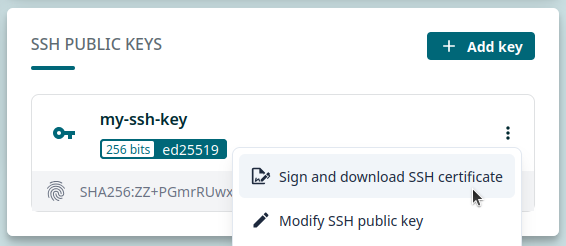
- Recommended: Move
cert.pubcertificate file to the same folder where you store your SSH keys and rename it as<ssh private key name>-cert.pub. For example,id_ed25519-cert.pub. - You may now log in to Roihu using an SSH client! This is covered in the next tutorial.
More information
💭 Docs CSC: More information about connecting and SSH keys and certificates.